
How to Watch MoviesJoy on a Smart TV (2026 Guide)
Watching a film on a phone is fine on the bus. At home, though, the big screen always wins.
You don’t need a special app to watch MoviesJoy on a smart TV. MoviesJoy runs in a web browser, so any method that puts a browser on your TV, or sends your phone or laptop screen to it, will work.
This guide covers five ways to watch MoviesJoy on a smart TV in 2026. It also shows which one suits your TV and how to fix the problems people hit most often: no sound, lag, and pop-up ads.
Quick answer: Open your TV’s built-in web browser and type the MoviesJoy address. If your TV has no browser, or the video won’t play, cast a Chrome tab from your laptop, mirror your phone with AirPlay or Smart View, use the Silk browser on a Fire TV Stick, or connect a laptop with an HDMI cable.
Before You Start: What You Need
Setting up MoviesJoy on a smart TV takes a few minutes, and that small effort saves a lot of fiddling with the remote later. Check these first:
- A smart TV or a streaming stick. Any smart TV works, and so does a regular TV with a Chromecast, Google TV Streamer, or Fire TV Stick plugged in.
- A steady internet connection. HD video usually needs about 5 Mbps. If other people are streaming at the same time, you’ll need more.
- The same Wi-Fi network on both devices. For casting and mirroring, your phone or laptop must be on the same network as the TV. A guest network counts as a different network.
- The correct MoviesJoy address. Copycat sites with similar spellings are common, so type the address carefully and bookmark it once it loads.
- Updated software. Install any pending updates for your TV, browser, and phone. Many casting problems disappear after an update.
Method 1: Use Your Smart TV’s Built-In Browser
This is the quickest way to open MoviesJoy on a smart TV because you need nothing extra. Most Samsung and LG smart TVs ship with a web browser already installed.
- Press the Home button on your remote.
- Open the browser app. Its name depends on your TV brand (see the table below).
- Select the address bar and type the MoviesJoy address with the on-screen keyboard.
- Search for a film or show, open it, and press Play.
- Select the full-screen icon in the video player.
Where to Find the Browser on Popular TVs
| TV brand or system | Browser app | Notes |
|---|---|---|
| Samsung (Tizen) | Internet | Pre-installed on most models |
| LG (webOS) | Web Browser | Pre-installed on most models |
| Google TV and Android TV (Sony, TCL, Hisense) | None by default | Some third-party browsers are in the Google Play Store; casting (Method 2) is usually easier |
| Roku TV | None | Use AirPlay, screen mirroring, or HDMI instead |
| Fire TV and Fire TV Edition sets | Silk Browser | See Method 4 |
Tip: Typing with a TV remote is slow. A wireless keyboard helps, and so does your TV brand’s phone app, such as SmartThings for Samsung or LG ThinQ for LG, which lets you type on your phone.
TV browsers are less powerful than the ones on phones and laptops. If a video refuses to start or keeps freezing, don’t waste time on it. Move to Method 2 or Method 3.
Method 2: Cast MoviesJoy from Chrome or an Android Phone
Casting sends what’s on your laptop or phone to the TV over Wi-Fi. It works with a Chromecast, Chromecast with Google TV, the Google TV Streamer, or any TV with Google Cast built in, which includes many Sony, TCL, and Hisense models.
From a Laptop (Windows, Mac, or Chromebook)
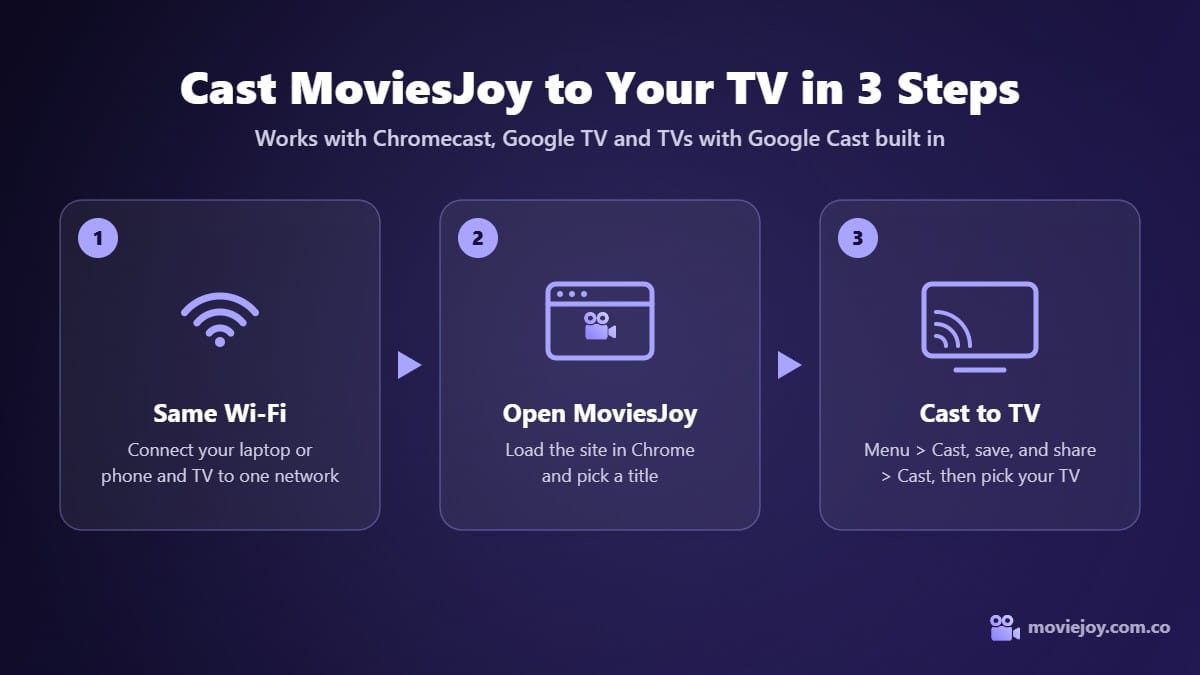
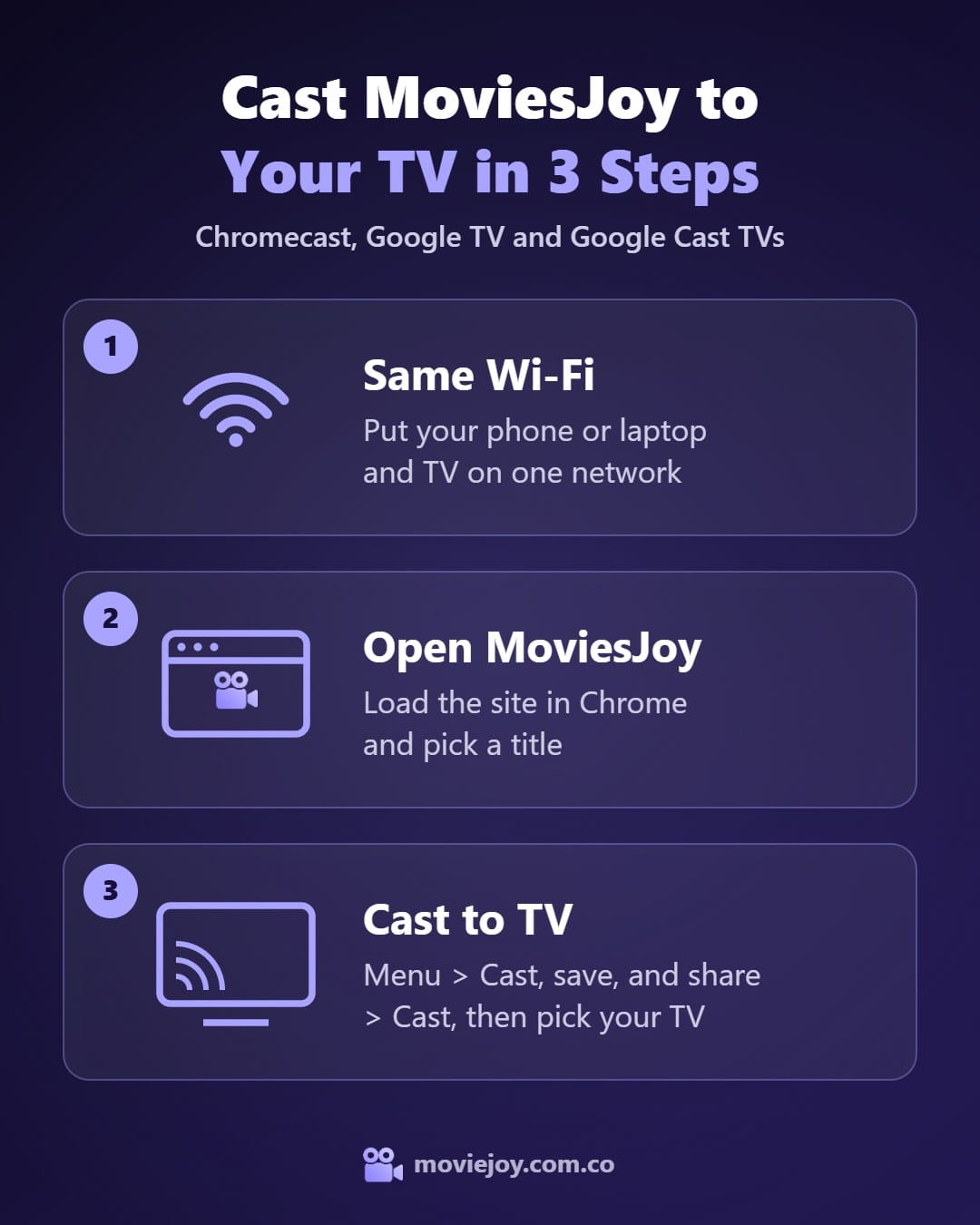
- Connect the laptop and the TV to the same Wi-Fi network.
- Open MoviesJoy in Google Chrome.
- Click the three-dot menu at the top right, then choose Cast, save, and share, and select Cast.
- Pick your TV from the list.
- Play the video and switch the player to full screen.
When you cast a single tab, the sound plays on the TV. If you cast your whole desktop instead, the sound may stay on the laptop, so stick with the tab option.
On a Mac running macOS 15 or later, Chrome needs permission before it can cast. Allow it in your Mac’s System Settings if the TV doesn’t appear. Google’s Chrome casting help page covers the full requirements.
To stop, click the Cast icon next to the address bar and choose Stop casting.
From an Android Phone
- Swipe down twice from the top of the screen to open Quick Settings.
- Tap Screen cast, Cast, or Smart View. The name depends on your phone brand; Samsung phones use Smart View.
- Choose your TV and accept the prompt on the TV if one appears.
- Open MoviesJoy in your phone’s browser, start the video, and turn the phone sideways.
Screen casting copies your whole phone screen, so notifications will show on the TV too. Turn on Do Not Disturb before you start.
Method 3: Mirror Your iPhone with AirPlay
iPhone users have the easiest time here. AirPlay 2 is built into many smart TVs from Samsung, LG, Sony, TCL, and Vizio, mostly models from 2018 onward, as well as many Roku TVs.
- Connect your iPhone and the TV to the same Wi-Fi network.
- On a Samsung TV, switch AirPlay on first: open Settings, find Apple AirPlay Settings under the Connection or General menu, and turn AirPlay on.
- Open MoviesJoy in Safari and start the video.
- Open Control Center and tap Screen Mirroring.
- Choose your TV. If a code appears on the TV, type it on your iPhone.
- Turn the phone sideways so the video fills the screen.
To stop, open Control Center again, tap Screen Mirroring, and choose Stop Mirroring. Samsung owners can follow Samsung’s AirPlay setup guide for the exact menu on their model.
No AirPlay on Your TV?
Older TVs often don’t support AirPlay. You have two options:
- Install a screen-mirroring app from the App Store that supports your TV brand. Read the reviews first, since many of these apps limit features until you pay.
- Use a cable instead. An iPhone with a USB-C port (iPhone 15 and later) can connect through a USB-C to HDMI adapter. Older iPhones need Apple’s Lightning Digital AV Adapter. See Method 5 for the rest of the steps.
Method 4: Use the Silk Browser on an Amazon Fire TV Stick
If you own a Fire TV Stick or Fire TV Cube, use Silk. It’s Amazon’s own browser, it’s free, and it’s built to work with the Fire TV remote. On many devices, it’s already installed and shows up as Internet.
- From the Fire TV home screen, go to Find, then Search.
- Type Silk, or hold the voice button and say “Open Silk Browser.”
- Download the app if it isn’t installed, then open it.
- Select the address bar and type the MoviesJoy address.
- Choose a title, press Play, and switch to full screen.
- Add the page as a bookmark so you never have to type the address again.
If Silk freezes or won’t load pages, go to Settings, then Applications, then Manage Installed Applications, and select Silk Browser. Choose Force stop, then Clear cache. If that doesn’t help, restart the stick from Settings > My Fire TV > Restart.
You may see sideloaded “MoviesJoy apps” recommended for Fire TV. Skip them. MoviesJoy has no official app, and unknown APK files are a common way to get malware onto a streaming stick.
Method 5: Connect a Laptop with an HDMI Cable
When wireless methods keep stuttering, go old school. A cable doesn’t depend on Wi-Fi between your devices, so it’s often the smoothest way to play MoviesJoy on a smart TV.
- Plug one end of an HDMI cable into your laptop and the other into the TV. Many newer laptops only have USB-C ports, so you may need a USB-C to HDMI adapter.
- Press Source or Input on the TV remote and choose the HDMI port you used.
- On Windows, press Windows + P and choose Duplicate or Second screen only. On a Mac, open System Settings > Displays to set it up.
- Open MoviesJoy, play the video, and switch to full screen.
Sound still coming from the laptop? On Windows, click the speaker icon in the taskbar and pick the TV as the output device. On a Mac, go to System Settings > Sound > Output and select the TV.
The same idea works with phones. Many Android phones and iPhone 15 or later models can send video through a USB-C to HDMI adapter, though not every Android phone supports it.
Common Problems and Quick Fixes
Most problems with MoviesJoy on a smart TV come down to the network, the sound output, or the TV’s browser. Find your symptom below.
| Problem | Likely cause | Fix |
|---|---|---|
| TV doesn’t appear in the Cast or AirPlay list | Devices are on different networks, or the feature is off on the TV | Put both on the same Wi-Fi, turn on AirPlay or Cast in TV settings, then restart both devices |
| Video buffers or lags | Weak Wi-Fi signal | Move closer to the router, use the 5 GHz band, pause other downloads, or switch to HDMI |
| Sound plays on the phone or laptop | Whole desktop is being cast, or the wrong output is selected | Cast a single tab, or change the sound output to the TV |
| Video won’t play in the TV browser | The TV’s browser is outdated or can’t run the player | Update the TV software, or switch to casting or HDMI |
| Black screen over HDMI | Wrong TV input selected | Press Source or Input and pick the correct HDMI port |
| Picture doesn’t fill the screen | Phone is upright, or the player isn’t in full screen | Turn the phone sideways and tap the full-screen icon |
Stay Safe While Streaming on Your TV
Free streaming sites often run pop-ups and redirects. On a TV, they’re harder to spot and harder to close with a remote, so a few habits go a long way:
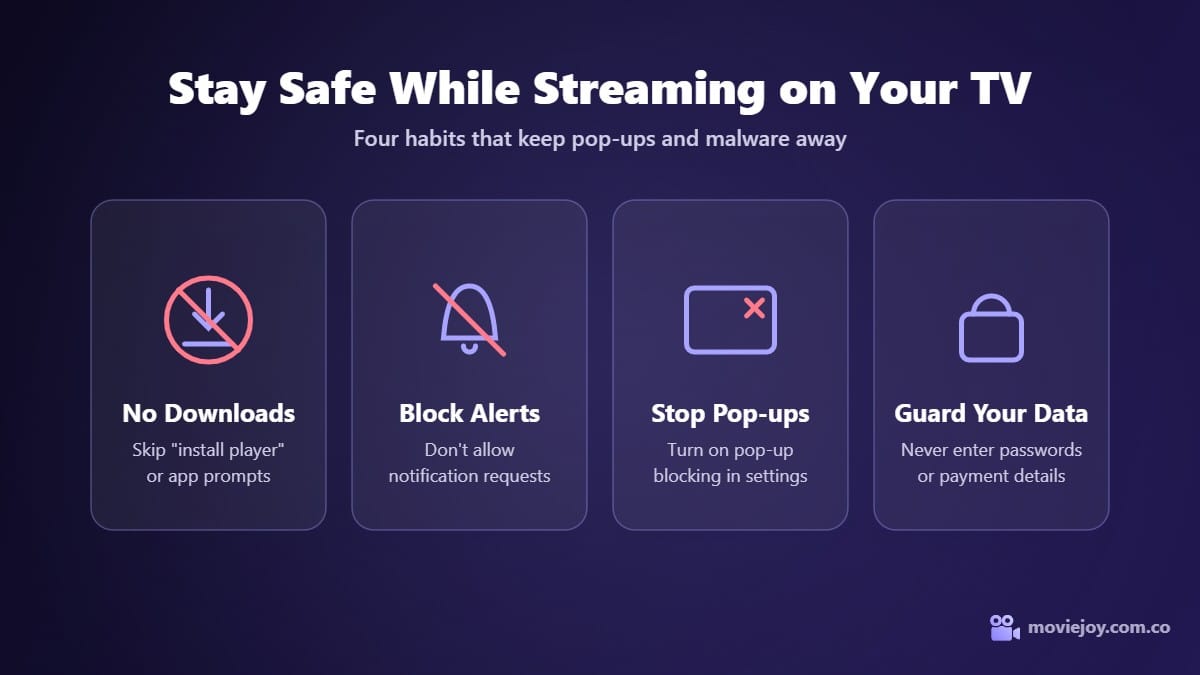
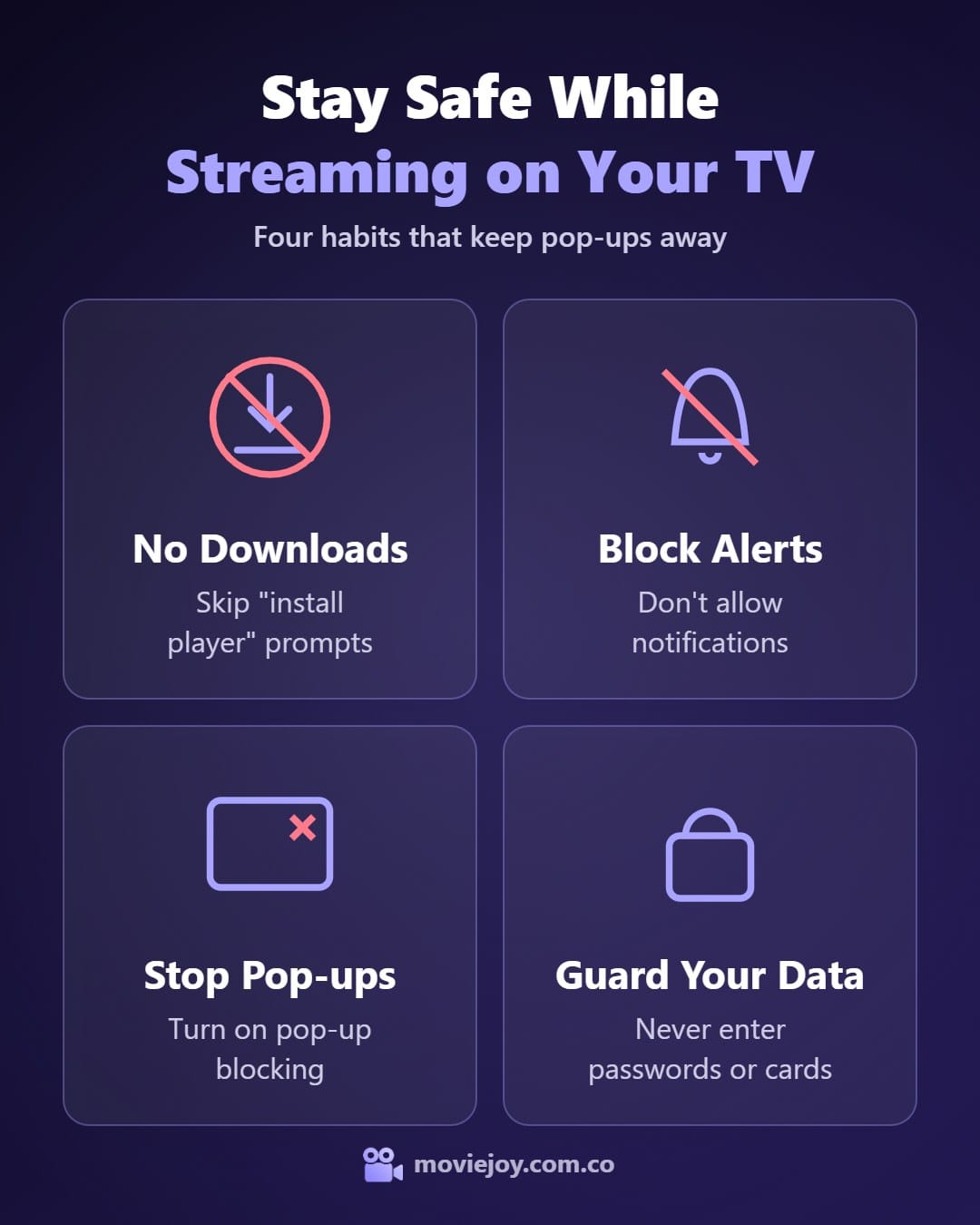
- Ignore download and update prompts. MoviesJoy plays in the browser. A button asking you to install a player, an app, or an update is not part of the site.
- Block notification requests. Pages that say “Click Allow to prove you’re not a robot” want to send you spam notifications.
- Turn on pop-up blocking in your browser’s settings wherever the option exists.
- Watch the address bar. If the site address suddenly changes to a different name, go back.
- Never enter passwords or payment details on a free streaming page.
Streaming rules differ from country to country, so check what’s allowed where you live. If you’d rather avoid the risk entirely, free legal services such as Tubi and Pluto TV have apps on most smart TVs.
For more help with the site itself, see the answers on the MoviesJoy homepage.
The Best Way to Watch MoviesJoy on a Smart TV
| Method | Best for | Extra gear needed | Playback | Setup |
|---|---|---|---|---|
| TV browser | Samsung and LG owners | None | Good, can lag | Easy |
| Chrome casting | Laptop users | Chromecast or a TV with Google Cast | Very good | Easy |
| Android casting | Android phone users | A TV that supports casting | Good | Easy |
| AirPlay | iPhone users | A TV with AirPlay 2 | Very good | Easy |
| Silk on Fire TV | Fire TV Stick owners | Fire TV Stick or Cube | Very good | Easy |
| HDMI cable | The steadiest playback | HDMI cable, plus an adapter if needed | Best | Moderate |
If you want the quickest way to watch MoviesJoy on a smart TV, try your TV’s own browser first, since it costs nothing and takes two minutes. If the video won’t play, an HDMI cable is the fallback that almost never fails.
Frequently Asked Questions
Is there a MoviesJoy app for smart TVs?
No. MoviesJoy has no official app for TVs, phones, or streaming sticks. It runs in a web browser, so treat any “MoviesJoy app” or APK file as unofficial and avoid it.
Can I watch MoviesJoy on a Samsung smart TV?
Yes. Open the Internet app on the TV and type the address. You can also mirror an iPhone with AirPlay or a Samsung phone with Smart View.
Can I watch MoviesJoy on a Roku TV?
Roku TVs don’t have a web browser. Many newer Roku models support AirPlay for iPhones, and you can always connect a laptop with an HDMI cable.
Why is there no sound when I cast to my TV?
You’re probably casting your whole screen instead of a single tab, or the sound output is still set to your phone or laptop. Cast the tab only, or change the output device to the TV.
Why does the video play on my phone but not in the TV browser?
TV browsers are slower and support fewer video players than phone browsers. Cast or mirror from your phone instead, and the video will usually play.
Is it safe to watch MoviesJoy on a smart TV?
Watching through a browser is lower risk than installing apps, but pop-ups and fake download buttons still appear on free streaming sites. Follow the safety tips above and never install anything a page asks you to.